Ratings represent our editorial opinion, not Amazon's. TechXFinder is reader-supported and may earn an affiliate commission. Details
How To Mirror Macbook Air To Monitor
Learn everything you need to know about how to mirror macbook air to monitor. Comprehensive guide with expert tips, best practices, and actionable advice.
Understanding Display Modes: Mirroring vs. Extending
▸Defining Mirror Display Mode
When you choose to mirror your display, your MacBook Air reproduces the exact same image on its internal screen and the connected external monitor. This mode is ideal for situations where an audience needs to see exactly what you are seeing, such as during a lecture, a business presentation, or when watching media content. Both screens will display the same windows, icons, and cursor movement simultaneously. It is important to note that in this mode, both screens usually default to the native resolution of the lower-resolution display to maintain aspect ratio consistency, which might result in black bars or a slightly lower-quality image on a high-end external monitor.
▸Defining Extended Desktop Mode
In contrast, Extended Desktop mode treats your external monitor as a separate, additional workspace. This allows you to drag windows, applications, and files from your MacBook screen to the external monitor, effectively doubling your available screen real estate. While this article focuses on mirroring, understanding this mode is crucial because it is often the default setting when you connect a monitor. Extended mode is the preferred choice for multitasking professionals who need to reference documents on one screen while working on another. Knowing the difference helps you quickly switch back to mirroring if your goal is to duplicate your screen rather than expand it.
▸Switching Between Modes
Switching between these two modes is a straightforward process that can be accomplished in seconds. Once your monitor is connected, you can toggle between mirroring and extending without diving deep into system preferences. The quickest method is using the Display menu in your menu bar, provided you have enabled the 'Show mirroring options in the menu bar when available' feature. Alternatively, you can hold the Option key on your keyboard while clicking one of the resolution buttons in the Displays preference pane to reveal the 'Mirror Displays' checkbox. Understanding this toggle ensures you can adapt your setup instantly based on your immediate needs.
▸Performance Implications for Each Mode
Your choice of display mode can impact your MacBook Air's performance. When mirroring, the GPU (Graphics Processing Unit) is essentially driving one logical display, though it renders pixels for two physical screens. However, because the resolution is often scaled down to match the smaller screen, the performance load is generally manageable. In Extended mode, the GPU must render distinct pixels for both screens, often at their maximum native resolutions. While the Apple Silicon chips (M1, M2, M3) handle this efficiently, older Intel-based MacBook Airs might experience slight lag if driving a 4K or 5K monitor alongside the internal display. Mirroring is often slightly less demanding on older hardware.
Identifying Your MacBook Air Ports and Capabilities
▸Thunderbolt and USB-C Connectivity
Modern MacBook Air models, particularly those released from 2018 onwards, rely exclusively on Thunderbolt 3 or Thunderbolt 4 ports, which utilize the oval-shaped USB-C connector. These ports are incredibly versatile, handling data transfer, charging, and video output all through a single cable. If you own a MacBook Air with Apple Silicon (M1, M2, or M3) or an Intel-based model from 2018 or later, you will use these ports for video mirroring. It is vital to use a high-quality cable that supports video throughput; while any USB-C cable can charge your laptop, not all support the DisplayPort Alt Mode required for video mirroring. Always check your cable specifications to ensure it is 'USB-C to [Video Standard]' compatible.
▸Legacy Mini DisplayPort Connections
If you are using an older MacBook Air model (typically those released between 2008 and 2017 with Intel processors), your machine likely features a Mini DisplayPort. This port is rectangular with beveled corners and is distinct from the USB-C standard. While these older machines can easily mirror to modern monitors, they require different adapters—specifically Mini DisplayPort to HDMI, DVI, or VGA. Identifying which port your specific model has is the critical first step before purchasing any adapter or cable. You can identify your model by clicking the Apple logo in the top-left corner and selecting 'About This Mac' to view the hardware overview.
▸Native Resolution Support
Different MacBook Air generations support different maximum resolutions for external displays. The latest Apple Silicon MacBook Airs (M1/M2/M3) can typically support one external display with up to 6K resolution at 60Hz. However, Intel-based MacBook Airs usually support one external display up to 4K or sometimes 6K depending on the specific year and processor. When mirroring, the resolution output to the external monitor will be constrained by the MacBook Air's internal display resolution if the system is set to 'Default for display'. Knowing your hardware's limits prevents frustration when trying to achieve crisp, high-definition visuals on a large 4K monitor.
Selecting the Right Cable and Adapter
▸HDMI Connections and Adapters
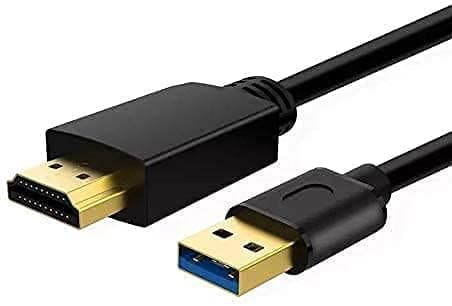
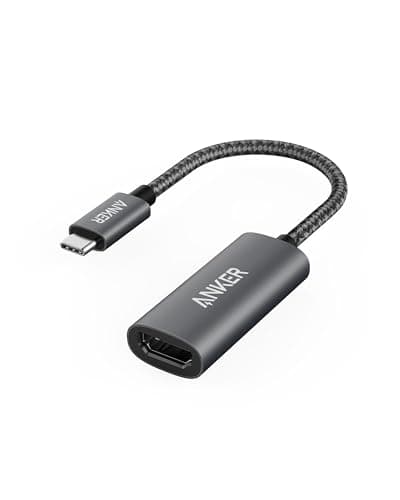
HDMI (High-Definition Multimedia Interface) is the most universal standard for connecting to monitors and TVs. If your external monitor has an HDMI port, you will likely need a USB-C to HDMI adapter or a direct USB-C to HDMI cable. This is often the simplest solution for users who want to mirror their screen in conference rooms or living rooms. When purchasing an adapter, look for one that supports HDMI 2.0 or higher if you wish to output 4K resolution at 60Hz. Cheaper, older adapters might be limited to 4K at 30Hz, which can result in noticeable mouse lag and choppy video playback during your mirrored session.
▸DisplayPort and USB-C Alternatives
For professional-grade monitors, DisplayPort is often preferred for its robust bandwidth capabilities. You can connect your MacBook Air to a DisplayPort input using a USB-C to DisplayPort cable. This connection type is excellent for high-refresh-rate gaming monitors or professional color-grading displays. Additionally, some monitors feature a USB-C input that allows for a direct connection using the USB-C cable that came with your MacBook Air (if it supports video). This 'single-cable solution' is highly desirable as it can mirror your display and charge your MacBook Air simultaneously, reducing cable clutter on your desk.
▸DVI and VGA Legacy Support
While less common today, you may encounter older projectors or monitors that only accept DVI or VGA inputs. Mirroring to these devices requires specific multi-port adapters. VGA is an analog signal, so the image quality on your external display may look softer or less defined than what you see on your MacBook Air's Retina display. DVI is digital and provides a sharper image but does not carry audio. If you must present on legacy hardware, ensure you have a reliable USB-C to VGA or DVI adapter. Keep in mind that these adapters are active converters, meaning quality matters—cheap adapters often result in signal dropouts or flickering screens.
▸Docking Stations and Hubs
If you frequently connect your MacBook Air to multiple peripherals alongside a monitor, a USB-C Docking Station or Hub is a wise investment. These devices plug into a single Thunderbolt/USB-C port on your Mac and provide a variety of outputs, including HDMI, DisplayPort, USB-A, and SD card slots. When using a dock to mirror your display, ensure the dock supports 'Pass-through charging' so your MacBook stays powered. Docks simplify the process of connecting and disconnecting your workstation; you simply plug in one cable to mirror your screen and access all your accessories instantly.
Step-by-Step Wired Connection Guide
▸Preparing Your Hardware
Before plugging anything in, ensure your external monitor is powered on and set to the correct input source. Use the monitor's physical buttons to navigate its menu and select HDMI, DisplayPort, or USB-C, depending on your cable type. Next, verify that your MacBook Air is awake and logged in. If you are using an adapter or hub, connect it to your MacBook first. It is generally good practice to have your MacBook Air plugged into a power source, especially during long mirroring sessions, as driving an external display consumes significant battery resources.
▸Establishing the Connection
Connect the video cable from your monitor to the adapter or directly into your MacBook Air's Thunderbolt port. Once the cable is seated firmly in both ends, your MacBook Air should automatically detect the external display. By default, macOS typically defaults to Extended Desktop mode, meaning your desktop background will appear on the new screen, but your open windows will stay on your laptop. If your screen does not appear, check that the cable is fully inserted and that the monitor is definitely on the correct input channel. You should see your desktop wallpaper appear on the second screen almost immediately.
▸Enabling Mirror Mode via System Settings
Once connected, you must activate mirroring. Navigate to the Apple Menu () in the top-left corner and select 'System Settings' (or 'System Preferences' on older macOS versions). Click on 'Displays'. Here, you will see a visual representation of your screens. On the right side of the window (or in the 'Arrangement' tab on older macOS), look for a dropdown menu labeled 'Use as' and select 'Mirror [Monitor Name]'. Alternatively, if you see a checkbox for 'Mirror Displays', check that box. Your screens will flash briefly, and subsequently, both displays will show the exact same content.
▸Troubleshooting Initial Detection
If your MacBook Air fails to recognize the monitor, don't panic. First, try a different cable—cables are often the weakest link in the hardware chain. Second, try a different port on your hub or MacBook. If the issue persists, navigate to the Displays settings and hold the Option key on your keyboard. A 'Detect Displays' button will appear; click this to force the macOS to scan for connected hardware. If the monitor remains undetected, restart your MacBook Air with the cable connected. This forces a hardware refresh during the boot process, which often resolves recognition issues caused by temporary firmware glitches.
Configuring Display Settings for Optimal Quality
▸Adjusting Resolution Settings
When mirroring, macOS attempts to choose the best resolution for both screens, but manual adjustments often yield better results. In 'System Settings' > 'Displays', you can choose between 'Best for display' (which is automated) and specific resolutions. If your external monitor looks pixelated or text appears fuzzy, try selecting 'Scaled' and choosing a resolution that matches the monitor's native resolution. However, be aware that when mirroring, selecting a resolution higher than your MacBook Air's built-in screen can cause the internal display to look zoomed out or use software scaling, which degrades sharpness. Aim for the 'native' resolution of your external monitor for the crispest image.
▸Managing Refresh Rates
The refresh rate, measured in Hertz (Hz), determines how many times per second the screen updates. A higher refresh rate results in smoother motion. While the MacBook Air defaults to 60Hz, many modern monitors support higher rates. In the Displays settings, click 'Show All Resolutions' to see available refresh rate options. If your external monitor supports 120Hz or 144Hz, selecting this can make mouse movements appear incredibly fluid. This is particularly beneficial for video editing or gaming. Note that higher refresh rates require more bandwidth, so ensure you are using a high-quality Thunderbolt or HDMI 2.0/2.1 cable.
▸Color Profile and Brightness Calibration
To ensure the colors on your mirrored monitor match your work, you must check the Color Profile. In 'System Settings' > 'Displays', you can usually select the color profile provided by the monitor manufacturer (e.g., 'BenQ Standard' or 'LG Color Profile'). If the colors look washed out or inaccurate, click the 'Color' tab and use the macOS calibration tool by holding Option and clicking 'Calibrate'. This wizard walks you through adjusting gamma, white point, and brightness to create a custom profile. Proper calibration is essential for photographers and designers who rely on accurate color representation across both screens.
▸Overscan and Underscan Adjustments
When mirroring to a TV, you might encounter an issue where the image is cut off around the edges (Overscan) or doesn't fill the screen completely (Underscan). This happens because TVs and monitors handle pixel mapping differently. In the Displays settings, look for an 'Underscan' slider if the image is too large. If the image is too small with black borders, check your TV's settings menu—often found under 'Picture Size' or 'Aspect Ratio'—and set it to 'Just Scan', 'Full Pixel', or '1:1 Mapping'. Adjusting these settings ensures your mirrored content utilizes every inch of the screen real estate without cropping essential interface elements.
Wireless Mirroring with AirPlay
▸Requirements for AirPlay Mirroring
AirPlay is Apple's proprietary protocol for wireless streaming. To mirror your MacBook Air without cables, you need an AirPlay-compatible smart TV or a monitor connected to an Apple TV box. Both your MacBook Air and the receiving device must be on the same Wi-Fi network for discovery to occur. Most modern smart TVs from brands like Samsung, LG, Sony, and Vizio support AirPlay 2 natively. This method offers the ultimate convenience, eliminating cable clutter and allowing you to move around the room freely while your content remains on the big screen. Ensure your macOS is updated to the latest version for the best compatibility.
▸How to Activate AirPlay
To initiate AirPlay, look for the Screen Mirroring icon in your MacBook's menu bar (it looks like a rectangle with a solid triangle at the bottom). If you don't see it, go to 'System Settings' > 'Control Center' and enable 'Screen Mirroring'. Click the icon to reveal a list of available AirPlay devices. Select your TV or Apple TV from the list. Your screen may flash, and after a moment, your MacBook Air's desktop will appear on the external display. You can choose to mirror your entire screen or use the external display as a separate extended desktop wirelessly, depending on your preferences.
▸Managing AirPlay Quality and Lag
Wireless mirroring introduces latency (lag) because the video signal must be encoded, transmitted over Wi-Fi, and decoded by the TV. To minimize this, ensure you have a strong Wi-Fi connection, preferably on a 5GHz band rather than 2.4GHz. If you experience stuttering or pixelation, try moving closer to your Wi-Fi router or reducing network traffic by pausing large downloads. In 'System Settings' > 'Displays', while connected via AirPlay, you can adjust the resolution to 'Better Performance' or 'Better Quality'. Choosing 'Better Performance' reduces resolution slightly to improve frame rates, which is crucial for smooth mouse movement and video playback.
▸Using AirPlay Display Off Mode
An excellent feature of AirPlay is the ability to use your external display while keeping your MacBook Air's lid closed or screen off. To do this, simply connect your MacBook to a power source (this feature usually requires power). Initiate AirPlay, then close your MacBook lid. The external monitor will continue to show the mirrored content. You can also select 'Use AirPlay Display' and choose 'Stop Mirroring' to turn off the laptop screen while keeping the video signal running to the TV if you just want to watch a movie on the big screen without the laptop screen glowing.
Common Issues and Troubleshooting
▸Resolving Flickering or Blurry Displays
A flickering or blurry screen is often caused by a faulty cable or adapter. If your mirrored image flashes on and off or shows static, replace the video cable with a known working one. If that fails, the issue might be resolution mismatch. Go to 'System Settings' > 'Displays' and ensure the resolution selected is supported by your external monitor. Sometimes, 'True Tone' or 'Night Shift' features on your MacBook can cause a perceived color mismatch or shifting; try disabling these features in System Settings to see if the image stabilizes. Furthermore, check for software updates, as Apple frequently releases graphics firmware updates that resolve display stability issues.
▸Fixing 'No Signal' Errors
The dreaded 'No Signal' message usually points to an input selection error or power issue. Double-check that your monitor is powered on and set to the specific input port you are using (e.g., HDMI 1, not HDMI 2). If the input is correct, unplug the cable from both ends and plug it back in firmly. If you are using a USB-C hub, ensure it is an 'active' hub rather than a passive one, as passive hubs may not transmit video signals effectively. Finally, try resetting your MacBook's System Management Controller (SMC), which controls power functions and external peripheral detection, though on Apple Silicon Macs, a simple restart usually suffices.
▸Audio Sync and Output Issues
When mirroring via HDMI, audio is sent to the monitor along with video. If you see video but hear no sound, your Mac might still be outputting audio to its internal speakers. Go to 'System Settings' > 'Sound' and look at the Output tab. Select your external monitor or TV from the list of devices. If audio is delayed (out of sync), this is common with wireless AirPlay connections; try restarting both devices or using a wired connection for perfect sync. If using Bluetooth speakers, ensure they are connected to the correct device and not causing interference with the video signal.
▸Dealing with Window Size Mismatches
When you mirror a high-resolution MacBook Air screen to a lower-resolution monitor (or vice versa), windows may appear too large or text may be cut off. This happens because macOS scales the interface to fit. To fix this, adjust the 'Scaled' resolution in Display settings. If windows are too big, choose a higher resolution option in the list. If text is too small to read on the external monitor, choose a lower resolution or 'Larger Text' option in the scaled settings. This helps align the user interface elements between the two screens so you can work comfortably without resizing every window manually.
Tips for Optimizing Your Workflow
▸Using the Menu Bar Shortcut Efficiently
Savvy users should leverage the menu bar shortcut for rapid switching. Go to 'System Settings' > 'Control Center' and ensure 'Screen Mirroring' is checked to always show in the menu bar. This allows you to click the icon and instantly switch between mirroring and extending or disconnect from a display without opening System Settings. This is incredibly useful if you frequently move between your desk (where you might want extended mode) and a meeting room (where you need mirroring). Mastering this shortcut saves time and streamlines your daily transitions between different work environments.
▸Arranging Displays for Extended Mode
While this article focuses on mirroring, many users switch back and forth. When you are in extended mode (before or after mirroring), ensure your display arrangement matches your physical setup. In 'System Settings' > 'Displays', drag the blue box icons to match the physical placement of your monitors. If your monitor is to the left of your laptop, drag the blue box to the left. This ensures your cursor flows naturally from one screen to the other without hitting an invisible wall. Proper arrangement prevents disorientation when you stop mirroring and switch to extended desktop mode.
▸Keyboard Shortcuts for Display Management
macOS doesn't have a default hotkey for mirroring, but you can create one or use tools. However, you can use Command + Brightness Down (F1) to quickly dim your external display or Command + Brightness Up (F2) to brighten it. If you need to mirror frequently, consider using third-party utilities or 'Shortcuts' automation to toggle mirroring with a custom keyboard combination. Automating this process allows you to focus on your work rather than fiddling with settings every time you plug in or unplug your monitor.
▸Maintaining Security During Mirroring
When mirroring your screen in a public setting or meeting, be mindful of privacy and security. Notifications containing sensitive information (emails, messages, 2FA codes) will appear on the big screen for everyone to see. Use 'Do Not Disturb' mode (Hold Option and click the Notification Center icon) to suppress notifications while presenting. Additionally, be careful when sharing your screen; ensure you are sharing the correct window or screen if using conferencing software like Zoom or Teams, which adds another layer of complexity to display management.
Conclusion
Meet the Reporter
Alex Chen
Senior Reporter
Tech enthusiast and gadget reviewer with over 10 years of experience testing the latest consumer electronics and smart devices.